
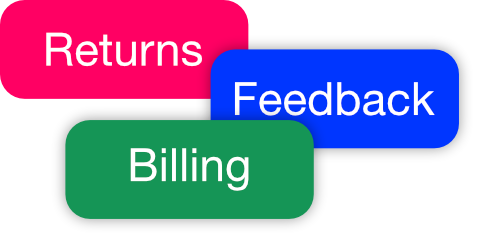
Conversation Tags
Organize and filter by topic, priority, or type.
With AI Companion enabled, tags are applied automatically to conversations so you can stay organized with no extra work. You can also add and remove tags manually. Filter your inbox by tag, see which topics come up most in Statistics, and control who can add or manage tags via permissions. Tags are off by default; enable them on the Tags page (checkbox Show tags in inbox and conversations) or by creating your first tag.
Tag conversations, filter the inbox
When AI Companion is on, new conversations are tagged automatically by topic, priority, or type. You can also add tags like "billing", "bug", or "urgent" to any conversation. In the inbox, click a tag to see only conversations with that tag. Up to 10 tags per conversation; create new tags on the fly or manage them in one place.
How it works
AI tags conversations automatically.
When AI Companion is enabled, new messages are tagged automatically so conversations are organized by topic, priority, or type without extra effort.
Add and remove tags on conversations.
You can also open a conversation and use "Add tag" to attach tags. Remove tags with one click. Create a new tag when it doesn't exist yet.
Filter and manage.
Filter the conversation list by tag. Go to Tags in the sidebar to edit tag names and colors, see conversation counts, and open filtered views.
See tag breakdown in Statistics.
Statistics shows a Tag Breakdown: top tags by conversation count and share. Click a tag to jump to the filtered inbox.
Permissions
Control who can add or remove tags on conversations and who can create or edit tags. Assign "Add/remove tags on conversations" and "Create and manage tags" when adding or editing team members in Settings.
Organize support with tags
Tag, filter, and analyze. Built into your inbox and Statistics.
Free plan available. No credit card required.